
One of the coolest features of Next.js is that the next/image component automatically handles serving optimized images based on the size at which the image is being rendered.
This feature is honestly one of the nicest things to have. You don't need to build your own image optimization pipeline or use another tool to generate different image sizes. Next.js does all of that for you.
But...
It comes with a cost.
Yes, the cost is the image optimization limit that Next.js hosting on Vercel provides.
If you're running a website that is very asset-heavy, like a regular blog where every article needs a featured image and several images inside the content, maybe a forum where users can upload images, or an open information portal with a huge amount of user-generated images, then the cost is real.

Vercel keeps track of image optimization and serving usage, and as your image usage increases, your cost can increase with it.
See, this is exactly what I was talking about.
Yes, it is actually a brilliant feature if you have a lot of cash in your hand and website running cost is the last thing you care about.
But if you're someone who has just started a website and you're trying to keep the running cost as low as possible, this feature can become a real pain in the head.
Now let's understand what I'm actually talking about.
How Next.js Image Optimization Works
Let's say you have hosted a Next.js application on Vercel and your website has 20 images.
When those images are requested, Vercel can optimize them on demand and cache the optimized versions at the edge.
Your website and your images are effectively being served through different infrastructure.
Your application is running somewhere, while the optimized images are served from the edge.
That's a perfect CDN-like setup.
Your website becomes blazing fast.
And honestly, that's great.
But...
That comes with a cost.
"What If I Just Turn Off Image Optimization?"
Now you might be thinking:
What if I simply stop using the image optimization feature?
Thankfully, you can.
You can disable Next.js image optimization from your next.config.js or next.config.mjs.
1// next.config.mjs23/** @type {import('next').NextConfig} */4const nextConfig = {5 images: {6 unoptimized: true,7 },8}910export default nextConfig
And guess what?
Your images will no longer go through Next.js image optimization.
That's a relief.
But again...
It comes with a price.
Now your images are basically being served in their original size.
Just think about it.
You have a profile thumbnail that is being displayed at 100 × 100 pixels, but the original uploaded image is 2000 × 2000 pixels.
What a mess.
The browser have to download a 2000 × 2000 image just to display a tiny profile picture.
The same thing can happen with article thumbnails, cards, avatars, galleries, and almost every other image on your website.
Whatever object storage you're using will generally give you the original uploaded image unless your CDN itself provides an on-the-fly image optimization or transformation pipeline.
And if your CDN does provide that, then you have another problem.
You need to build a complete system that knows which image size to request, which transformation URL to generate, which parameters to use, and how to consistently handle all of that across your application.
So now you've gone from:
"Next.js will handle my images for me."
to:
"I need to build my own image transformation system."
And that's exactly what I didn't want.
You Don't Realize This Until You Launch
This is something you'll probably never realize until you launch your first proper application.
The same thing happened to me.
The feature feels amazing when you first start using it.
You don't need to think about image sizes.
You don't need to think about responsive images.
You don't need to think about optimization.
Everything just works.
But once the website starts growing, you start seeing the other side of it.
And because almost all of my websites were already using next/image, I couldn't just imagine going back and designing everything from scratch around a completely different image system.
Honestly...
It was one of the worst feelings.
I wanted the convenience of Next.js Image.
I wanted the performance of responsive images.
But I didn't want the additional cost.
And I didn't want to send huge original images to the browser either.
So I started looking for another option.
"What If I Self-Host Next.js?"
Now comes the obvious thought.
What if the Next.js application is self-hosted and image optimization is still turned on?
WOW.
That would solve the problem completely.
No Vercel.
No Vercel image optimization charge.
My own server.
My own infrastructure.
Yes...
............................
NOOOOOOOOOOO.
If you do that, it will work.
100%.
Next.js will still serve optimized images.
But wait...
If the images are coming from a CDN—let's say DigitalOcean Spaces, Cloudflare R2, S3, or whatever you're using as your main image storage—and those images are coming to your Next.js server so that Next.js can optimize them...
Where are the actual optimized images getting served from?
LOL.
The very server that is holding your Next.js application.
And then I started asking myself:
What is the actual use of my CDN now?
The whole point of a CDN is to reduce and distribute the load.
We use a CDN so that our main application server doesn't have to handle every static asset request.
But in this setup, the exact opposite starts happening.
The CDN Suddenly Stops Being the Hero
Let's assume your original images are stored in DigitalOcean Spaces, Cloudflare R2, Amazon S3, or any other object storage that you're using as your CDN.
Normally, the browser requests the image directly from the CDN.
The CDN serves the image.
Your application server barely has to do anything.
That's exactly why we use a CDN in the first place.
But now let's see what happens when Next.js image optimization is enabled on your own server.
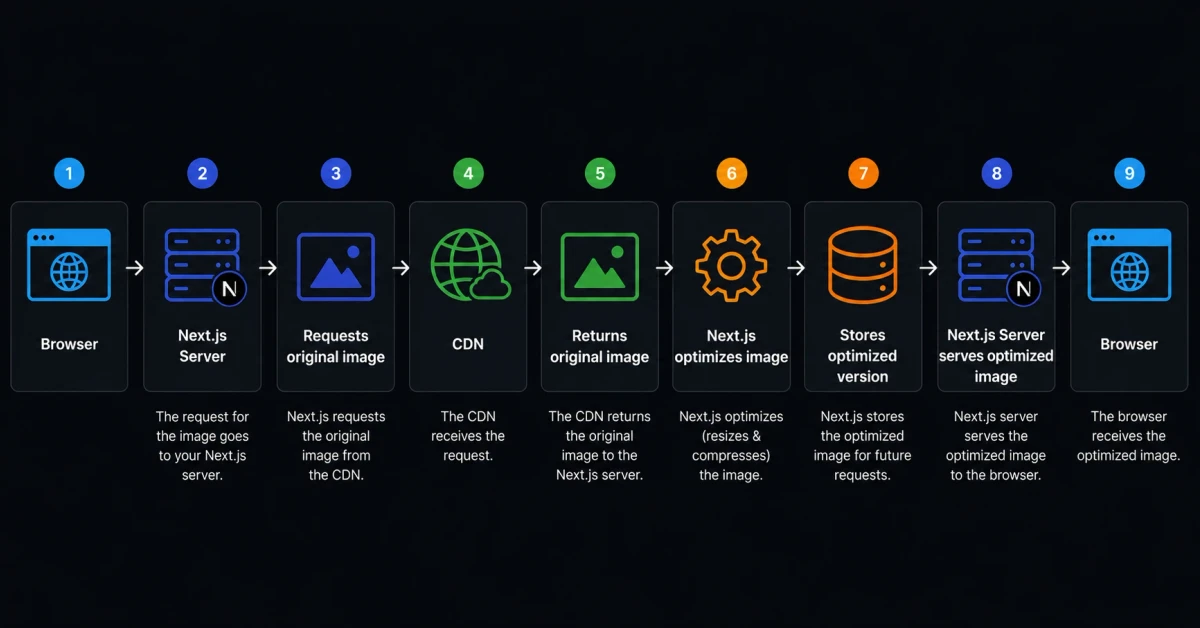
Do you see what's happening?
Your application server has suddenly become part of the image request.
The browser is no longer getting the final image directly from your CDN.
Your Next.js server is downloading the original image from the CDN, optimizing it, storing the optimized version, and then serving that optimized image to the browser.
So basically...
Your CDN is no longer serving the main image that your users are actually downloading.
The CDN is only giving your Next.js server the original image.
Your Next.js server is doing the rest.
And that's exactly where the problem begins.
Your server has to:
- Download the original image from the CDN.
- Resize it.
- Compress it.
- Store or cache the optimized version.
- Serve the optimized image to the visitor.
And imagine doing this for thousands of images.
Every.
Single.
Day.
Well... at least when a new image size is requested and hasn't already been optimized and cached.
But Isn't That Exactly What Next.js Is Supposed to Do?
Yes.
And that's exactly what makes this situation funny.
Next.js is doing exactly what it's supposed to do.
The problem isn't Next.js.
The problem is that now you are running the image optimization pipeline yourself.
When you're using Vercel, their infrastructure handles this for you.
When you're self-hosting, that responsibility moves to your own server.
And most people—including me—don't really think about what this means until the website starts growing.
Imagine a news website with thousands of images.
Now imagine hundreds or thousands of visitors requesting different image sizes every minute.
Your server isn't just serving HTML anymore.
It's also acting as an image processing server.
And image processing isn't cheap.
It consumes CPU.
It consumes memory.
It increases disk usage for caching.
It adds more work to the very same server that's already responsible for rendering your application, handling API requests, talking to your database, and doing everything else your website needs.
At some point, all of that extra work starts adding up.
There will be a point where your server will simply start choking.
Wait... Then What's the Point of Having a CDN?
Exactly.
That was the question I kept asking myself.
The whole reason we use object storage and CDNs is to reduce the load on our application server.
We want static assets to be distributed globally so the application can focus on doing what it does best.
Rendering pages.
Handling requests.
Talking to the database.
Running the application.
Not resizing thousands of images every day.
But when you enable runtime image optimization on a self-hosted server, you're asking the same machine to do everything.
It receives the request.
It fetches the original image.
It processes the image.
It stores the optimized version.
And then it serves that optimized version.
The CDN is sitting there holding the original image while your main application server is doing all the actual work.
That's one of the worst cases we can have when we're trying to build a properly distributed application.
So We're Back to the Same Problem
Hmmm...
Turning off image optimization does solve one problem.
The images are now served directly from the CDN.
That's a big relief.
Your server doesn't have to process them.
But...
We're back to the wrong image-size problem.
The browser can end up downloading a huge original image when it only needs a small version.
And that's not good either.
The website becomes heavier.
The browser has to download unnecessary data.
And if you're on a slower connection, you'll actually feel the lag while scrolling through an image-heavy website.
So let's look at where we are now.
Keep Next.js Image Optimization Enabled
You get:
- Optimized image sizes.
- Responsive image delivery.
- A great image experience.
But:
- Vercel image optimization can add cost.
- On self-hosting, your own server has to process and serve the optimized images.
- Your CDN is no longer directly serving the final optimized image.
Turn Image Optimization Off
You get:
- No runtime image optimization.
- Images can be served directly from your CDN.
- Less work for your application server.
But:
- Your browser receive the original image.
- A tiny image can result in a huge download.
- Your website can become unnecessarily heavy.
So...
I told you.
Next.js Image Optimization is a Trap.
Not because the feature itself is bad.
It's actually a fantastic feature.
The problem is that once your website becomes large and image-heavy, you start having to choose between cost, server resources, and image performance.
And I didn't want to choose.
I wanted all of them.
So...
How do we fix it?
The Solution
Yes.
I actually came up with a solution that eliminates all of these problems.
But there is a catch.
This particular implementation works extremely well if you're using Payload CMS.
It can also work with a standalone Next.js application, but you'll have to do some additional work to generate and manage the image variants yourself.
For this article, I'll stick with the Payload CMS approach because Payload already gives us almost everything we need.
The basic idea is very simple.
Instead of asking Next.js to optimize an image when someone requests it, we'll optimize the image when the image is uploaded.
So if someone uploads a 2000 × 1050 image, we'll create several optimized versions at that moment.
Something like:
| Image Variant | Dimensions |
|---|---|
| Thumbnail | 160 × 84 px |
| Small | 320 × 168 px |
| Medium | 640 × 335 px |
| Large | 960 × 503 px |
| Original | 2000 × 1050 px |
And all of these versions can be stored directly on your CDN.
Now the browser doesn't need Next.js to optimize anything.
The optimized files already exist.
All we need to do is tell the browser which version it should use.
And that's where srcSet comes in.
Step 1 — Generate Image Variants With Payload
First, we need to enable imageSizes inside your Payload Media collection.
Here is the configuration I'm using:
1upload: {2 mimeTypes: ['image/webp'],34 resizeOptions: {5 width: TARGET_W,6 height: TARGET_H,7 fit: 'cover',8 position: 'centre',9 },1011 formatOptions: {12 format: 'webp',13 options: {14 quality: 90,15 },16 },1718 imageSizes: [19 {20 name: 'thumbnail',21 width: 160,22 height: 84,23 fit: 'cover',24 position: 'centre',25 generateImageName,26 },27 {28 name: 'small',29 width: 320,30 height: 168,31 fit: 'cover',32 position: 'centre',33 generateImageName,34 },35 {36 name: 'medium',37 width: 640,38 height: 335,39 fit: 'cover',40 position: 'centre',41 generateImageName,42 },43 {44 name: 'large',45 width: 960,46 height: 503,47 fit: 'cover',48 position: 'centre',49 generateImageName,50 },51 ],5253 crop: true,54 adminThumbnail: 'small',55 displayPreview: true,56 disableLocalStorage: true,57},
What this does is pretty straightforward.
Whenever an image is uploaded, Payload generates all these different versions for us.
So instead of having only:
image.webp
we can have:
- image-160x84.webp
- image-320x168.webp
- image-640x335.webp
- image-960x503.webp
- image.webp
And because we're using the Payload storage adapter to store these files remotely, these generated variants can be uploaded directly to your object storage/CDN.
The important part is that the optimization happens once during upload.
Not every time someone requests the image.
Step 2 — Generate Predictable Image Names
I also like having predictable names for every generated image.
It makes it much easier to understand what is happening when you're looking at your storage bucket or debugging an image request.
Here's the helper I'm using:
1const generateImageName = ({2 height,3 width,4 extension,5 originalName,6}: {7 height?: number8 width?: number9 extension: string10 originalName: string11}) => {12 // Remove extension only13 const baseName = originalName.replace(/\.[^.]+$/, '')1415 // Keep the same base name and add dimensions16 return `${baseName}-${width}x${height}.${extension}`17}
So if the original image is:
football-match.webp
Payload can generate:
- football-match-160x84.webp
- football-match-320x168.webp
- football-match-640x335.webp
- football-match-960x503.webp
Now we have all the different image sizes sitting on the CDN.
The next problem is...
How do we actually use them from our Next.js application?
Because I don't want to manually check the screen size and decide which image URL to use.
I want the browser to do that for me.
And that's exactly what we're going to build next.
Step 3 — Build a Custom Image Component
At this point, we already have all the image sizes we need.
So I don't actually need Next.js to optimize anything anymore.
I only need a component that behaves similarly to next/image from the developer's perspective and uses the already-generated image variants.
This is where I created my own AppImage component.
1import clsx from 'clsx'23type ImageSizeItem = {4 url: string5 width?: number6}78type ImageSizes = {9 thumbnail?: ImageSizeItem10 small?: ImageSizeItem11 medium?: ImageSizeItem12 large?: ImageSizeItem13}1415type MaxSize =16 | 'thumbnail'17 | 'small'18 | 'medium'19 | 'large'20 | 'original'2122type AppImageProps =23 React.ImgHTMLAttributes<HTMLImageElement> & {24 image: {25 url: string26 alt: string27 width?: number28 sizes?: ImageSizes29 }30 fill?: boolean31 maxSize?: MaxSize32 }3334export default function AppImage({35 image,36 sizes = '100vw',37 fill = false,38 className,39 maxSize = 'original',40 ...props41}: AppImageProps) {42 const candidates = [43 {44 key: 'thumbnail',45 url: image.sizes?.thumbnail?.url,46 width: image.sizes?.thumbnail?.width || 160,47 },48 {49 key: 'small',50 url: image.sizes?.small?.url,51 width: image.sizes?.small?.width || 320,52 },53 {54 key: 'medium',55 url: image.sizes?.medium?.url,56 width: image.sizes?.medium?.width || 640,57 },58 {59 key: 'large',60 url: image.sizes?.large?.url,61 width: image.sizes?.large?.width || 960,62 },63 {64 key: 'original',65 url: image.url,66 width: image.width || 1200,67 },68 ]6970 const allowedOrder: MaxSize[] = [71 'thumbnail',72 'small',73 'medium',74 'large',75 'original',76 ]7778 const maxIndex = allowedOrder.indexOf(maxSize)7980 const filteredCandidates = candidates.filter(81 (candidate, index) =>82 Boolean(candidate.url) && index <= maxIndex,83 )8485 const srcSet = filteredCandidates86 .map(87 (candidate) =>88 `${candidate.url} ${candidate.width}w`,89 )90 .join(', ')9192 const defaultSrc =93 filteredCandidates[filteredCandidates.length - 1]?.url ||94 image.url9596 return (97 <img98 src={defaultSrc}99 alt={image.alt}100 srcSet={srcSet}101 sizes={sizes}102 loading="lazy"103 decoding="async"104 className={clsx(105 fill && 'absolute inset-0 w-full h-full',106 className,107 )}108 {...props}109 />110 )111}
Now this might look like a lot of code, but what is actually happening here is very simple.
We're giving the browser multiple image URLs.
The browser then decides which one it actually needs.
For example, if the image is being displayed at a small size, the browser might choose the 320px version.
If it's being displayed larger, it can choose the 640px or 960px version.
And because all of these images already exist on the CDN, Next.js doesn't need to process anything.
Step 4 — Use It Like a Normal Image
Now using the component is extremely simple.
For example, if I want to render a featured image for a post:
1<AppImage2 image={post.featuredImage}3 fill4 maxSize="original"5 className="object-cover group-hover:scale-[1.03] transition-transform duration-700"6/>
That's it.
It accepts className just like a regular image.
It supports the fill behavior I need.
It supports different maximum image sizes.
And most importantly, it uses the image variants that Payload already generated.
Now Turn Off Next.js Image Optimization
Once you have this system in place, you don't need Next.js to optimize your images anymore.
So you can simply turn it off:
1// next.config.mjs23/** @type {import('next').NextConfig} */4const nextConfig = {5 images: {6 unoptimized: true,7 },8}910export default nextConfig
And from this point onward, you can use your AppImage component wherever you need an image.
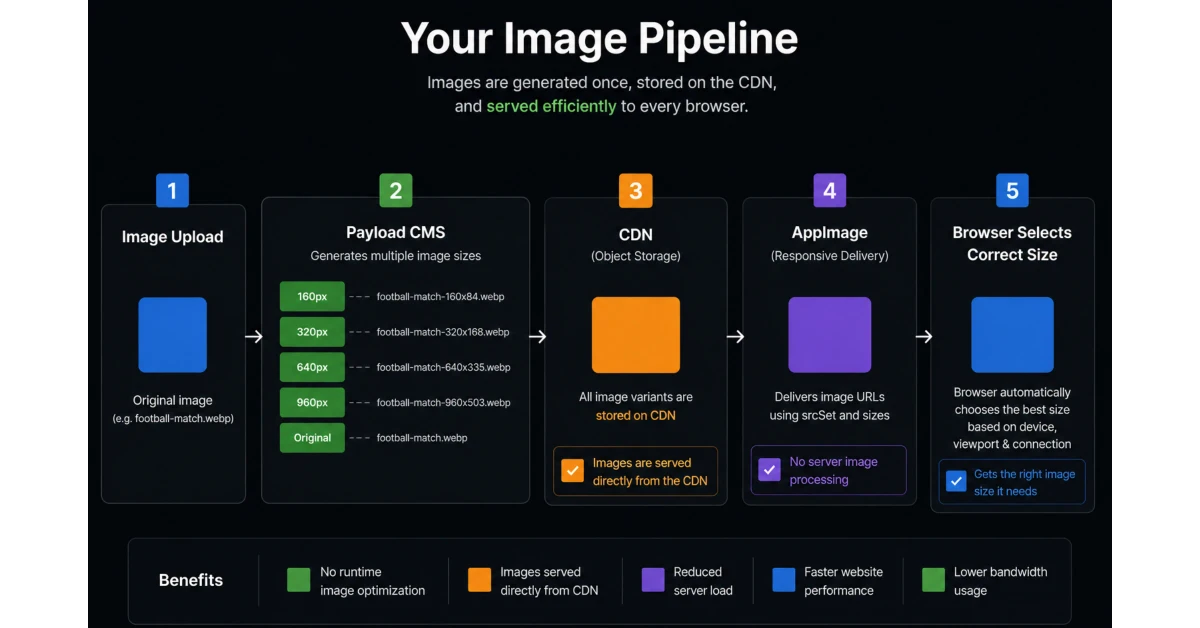
There is no runtime optimization happening.
There is no Next.js image processing happening.
There is no need for your application server to download an original image just to resize it.
The optimized versions are already sitting on your CDN.
The browser simply picks the one it needs.
Now You Have a Completely Owned Image System
And this is exactly what I wanted from the beginning.
I don't need to rely on Next.js Image Optimization.
I don't need to pay Vercel for image optimization.
I don't need my self-hosted Next.js server to process images.
And I don't need to send a 2000 × 2000 image to a browser just because I want to display a 200 × 200 thumbnail.
Payload generates the variants.
The CDN stores and serves them.
The browser selects the appropriate version.
That's it.
You basically have your own image optimization pipeline.
And the best part is that once you have this system, you can move your application wherever you want.
Vercel.
Your own VPS.
Coolify.
Dockploy.
Whatever.
Your images are completely independent from your application server.
One Small Thing About the Standalone Next.js App
As I mentioned earlier, I'm specifically showing the Payload CMS implementation here.
Payload already has the imageSizes functionality, so most of the hard work is already done for us.
If you're using a standalone Next.js application without Payload, you can still use exactly the same concept.
You'll just need to create your own image processing pipeline that generates the different sizes when the image is uploaded.
Once you have those variants stored on your CDN, the AppImage component can do the rest.
So the actual idea isn't tied to Payload.
Payload simply makes the implementation much easier.
Final Thoughts
So...
I told you.
Next.js Image Optimization is a Trap.
At least, that's how it felt to me.
Again, I'm not saying the feature is bad.
It's actually one of the coolest features Next.js provides.
But when you're running an image-heavy website, trying to keep your infrastructure cost low, or self-hosting your application, you start seeing the limitations that aren't obvious when you're just developing locally.
For me, the solution was to stop thinking about runtime image optimization and start thinking about pre-generated responsive images.
Generate the variants once.
Store them on the CDN.
Let the browser choose the correct one.
Don't make your main application server do work that your CDN and browser can handle.
That's the system I'm using now.
And honestly, I feel much better knowing exactly where my images are coming from and exactly what is happening when someone requests one.
Now what else do you need?
Try it.
I hope you'll be able to implement it.
I'm not going to stretch this article anymore because I think you understand the idea now.
If you don't, or if you run into some problem while implementing it, you can always reach out to me personally. Just check my author profile and use my personal website to text me.
I hope this helped.
Happy coding.








I’m a Software Engineer from Northeast Assam, India, with 10+ years of experience in the field of computer science. Over the years, I’ve worked with large enterprises and well-established companies, helping them design, build, and scale robust software solutions.